
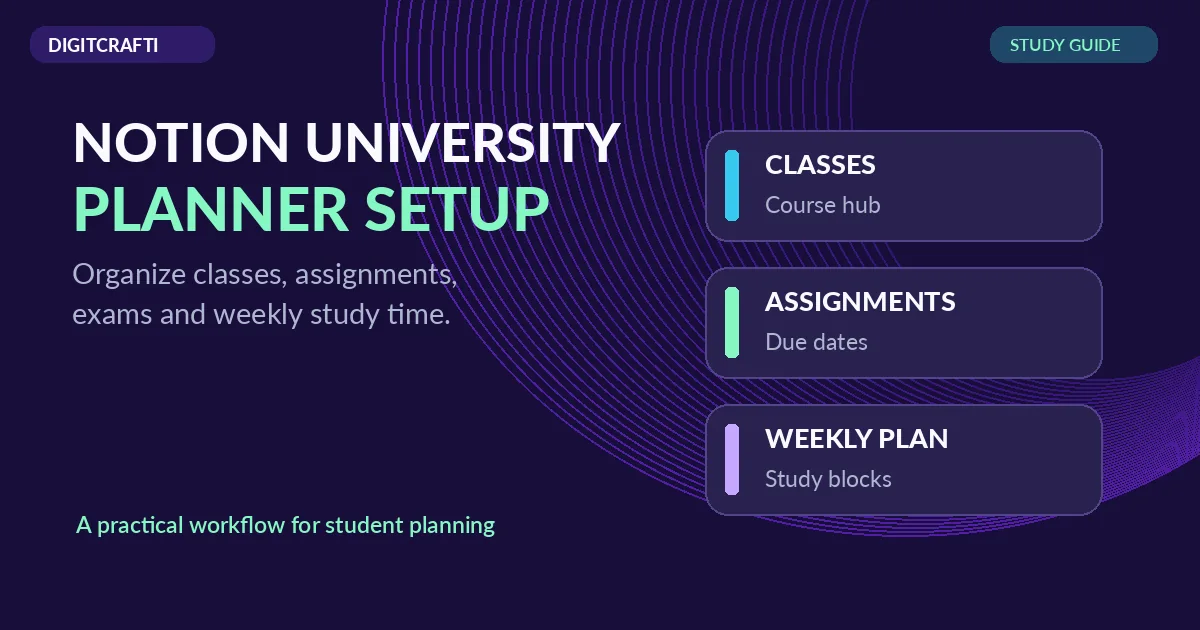
Notion university planner setup starts with four useful areas: a class hub, an assignment tracker, an exam plan, and a realistic weekly schedule. You can build these pages from scratch or duplicate a compatible template, then adapt them to your actual courses and deadlines. This guide walks through a practical student workflow, explains what to check before choosing a template, and shows how to keep your workspace manageable throughout a semester. You do not need a complicated dashboard to begin.
Notion University Planner Setup: What to Track First
Before designing a page, write down the information you regularly look for during a study week. It might be the next lecture, a reading deadline, a coursework submission, or a topic to revise before an exam. If your home page cannot answer those questions quickly, adding more widgets probably will not make studying easier.
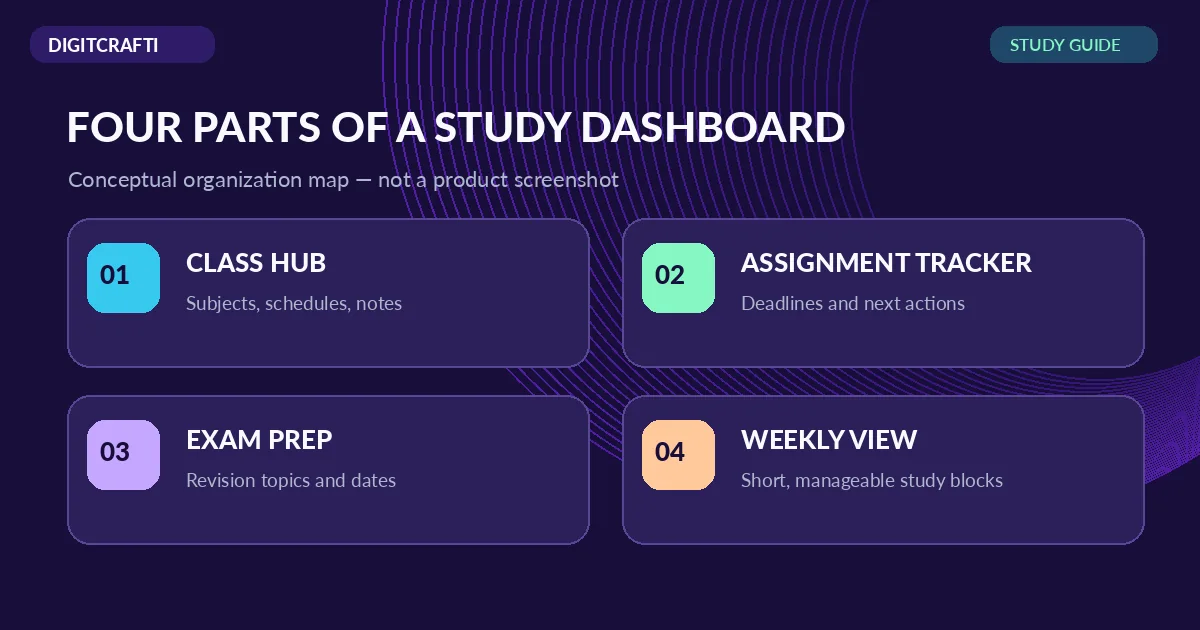
A practical starting point is a single home page linking to four areas: courses, assignments, exams, and weekly planning. Notes and resources can sit inside the relevant course pages. This keeps the home page focused while allowing you to maintain more detailed information elsewhere in your workspace.
Different students need different levels of detail. A student taking three courses may be comfortable with a short checklist. Someone handling labs, presentations, and several deadlines might benefit from a database with filters. Choose the simplest structure that you can actually maintain.
Duplicate a Notion template before you begin editing
If you are starting with a public Notion template, it may first open as a view-only page. According to Notion’s official duplication instructions, you can sign in through your browser, select Duplicate near the top of a public page, and choose the workspace where the copy should live. Your copy can then be customized without changing the original template.
After duplication, check that the main pages and linked sections are available. Some third-party elements may not carry over as expected, so test the content you intend to use. Rename the copied home page with your semester or course year, replace demonstration text, and remove sample material that you do not need.
A helpful first-day setup checklist
- Rename your workspace or planner page with a meaningful semester label.
- Add your current course names and your confirmed important dates.
- Test one assignment entry from creation through completion.
- Open the duplicated page on the device you usually study with.
- Keep only the sections you expect to update regularly.
If you prefer to start with an existing design, the Student Notion Planner on DigitCrafti is shown with sections for classes, assignments, weekly planning, daily planning, and study notes. Its PDF access guide explains how to duplicate the view-only page into your own Notion workspace. Review the product description and previews for the precise included sections before purchasing.
Create a course hub for lectures, notes, and resources
In a Notion university planner setup, the course hub should act as an index, not a giant page containing everything you have learned. Give each course a dedicated area with a clear name, an overview of upcoming requirements, and links to relevant study notes. Keeping the same format for every course makes it easier to find material when you switch subjects.
For each subject, you might record the course name, class schedule, lecturer details if useful, a reading list, and links to lecture notes. These are suggested fields you can add; not every premade Notion template includes them automatically. Avoid uploading private classmates’ information or sharing protected course materials without permission.
Keep study notes close to the course they belong to
A note titled “Week 3” is hard to identify when you have several subjects. Use a consistent format such as “Subject — Topic — Week,” and place reference links beside your notes. If you want to track which topics need review, add a simple status such as “To review,” “Reviewing,” or “Understood.” Those labels are your own study method, not a promise that a purchased template comes with a particular status system.
Make an assignment tracker that shows the next action
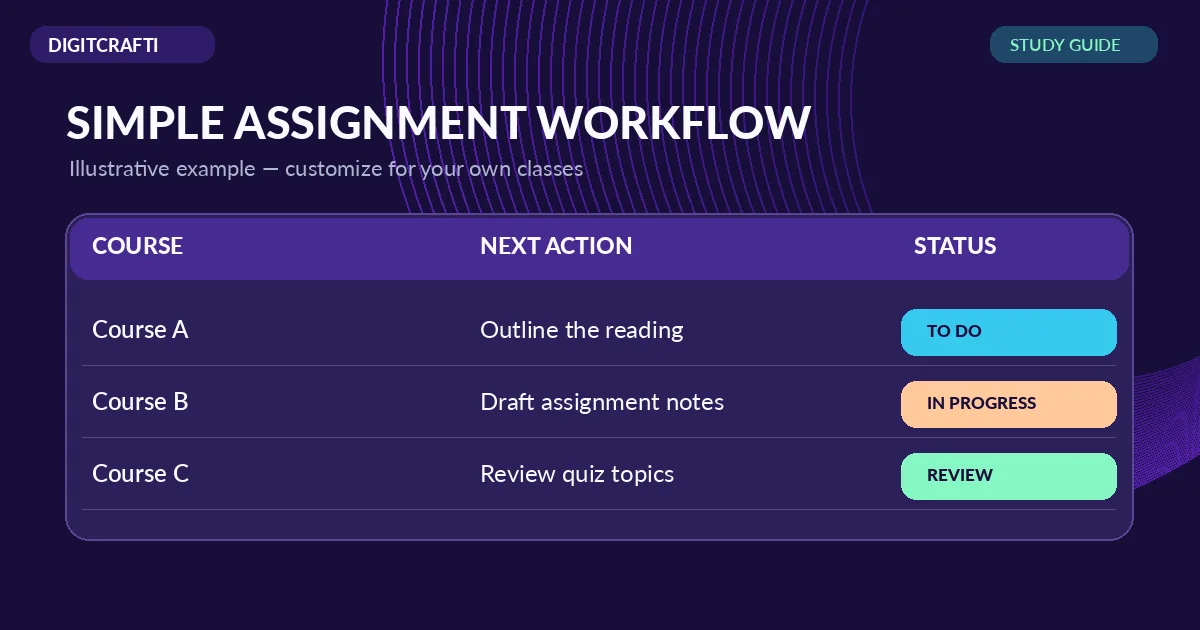
A Notion university planner setup becomes more useful when each assignment entry describes more than the final deadline. Recording the next useful action can turn a broad task such as “Submit report” into something approachable, like “Choose sources,” “Draft outline,” or “Check calculations.”
You can create a Notion database with fields for the course, assignment title, due date, status, and next action. Notion supports properties, filtering, sorting, and multiple database views; the official database guide explains the underlying features. A due-date calendar can be useful, but a simple table often works better when you want to review every task at once.
Try marking work as “Not started,” “In progress,” “Waiting,” or “Finished.” If you dislike status labels, use one checkbox instead. The objective is to make it obvious what deserves attention next, not to spend time maintaining a complicated system.
Separate the due date from your personal target date
If you tend to finish assignments close to the deadline, add an earlier personal review date. Use that buffer to check formatting, instructions, references, or questions for the lecturer. Keep the official submission date unchanged so you always know the real requirement.
During your weekly review, look for tasks that are blocked. Ask what information, feedback, or resource is missing. A clear next action usually helps more than repeatedly moving an unfinished item to tomorrow.
Build a realistic exam and revision plan
In a Notion university planner setup, exam planning works best when it connects topics to available study time. Create an exam list with each subject’s confirmed date, relevant topics, and a simple revision status. Then break the revision topics into sessions you could reasonably complete, instead of writing “Study entire course” as one task.
For example, a revision session could focus on one formula group, one practice problem, or one lecture chapter. After studying, record whether the material needs another pass. If you discover a weak area, schedule a follow-up before the exam rather than assuming a single reading was enough.
Do not confuse a visually full calendar with an effective study plan. Leave room for classes, commuting, meals, and unexpected work. You can use the same workspace to note exam-related questions and track when you have reviewed each answer.
Use a weekly plan to protect focused study time
A weekly planning page connects assignment deadlines with everyday action, making your Notion university planner setup easier to use. At the start of the week, check upcoming coursework, exams, and any fixed commitments. Choose a few important tasks and place them into realistic study blocks.
Rather than scheduling every minute, give each block a specific objective such as “Summarize lecture notes,” “Attempt three practice questions,” or “Finish the report introduction.” Mark completed work and move unfinished tasks only after deciding whether they are still important.
A short end-of-week review can reveal recurring problems. Are you consistently underestimating reading time? Are several deadlines landing on the same day? Is one course getting less attention than planned? Adjust the next week based on these observations rather than rebuilding your entire template.
Keep your planner useful across desktop and mobile
A Notion university planner setup should be practical across devices. For many students, a laptop is convenient when editing longer notes or reorganizing tables, while a phone is helpful for checking an upcoming task. Make sure the most important links are easy to find on both. You do not need every decorative element or complex view on the mobile screen.
A simple habit is to use your planner at three consistent moments: to choose your priorities before studying, to update tasks after completing work, and to review the coming week. A Notion planner only reflects your plans accurately if you keep it up to date.
If you use someone else’s shared template, remember that view-only access is not the same as having your own editable copy. Duplicate it first when the creator permits duplication, and confirm that the linked pages are present.
Choose between building a planner and using a template
For a Notion university planner setup, building from scratch gives you control over every property, but setting up a course hub, task database, and linked weekly views can take attention away from studying. A premade template gives you a starting structure, yet you should still inspect its contents, editing requirements, and device compatibility before buying.
For a university-oriented layout, see the Student Notion Planner university dashboard. If you want to compare a broader range of planning and productivity resources, explore the Notion Templates Bundle or browse our Digital Planners category.
Still deciding whether Notion is the best format for your situation? Our article on digital planner templates in Canva versus Notion explains the difference between a visual design workflow and a connected planning workspace.
Choose a template based on the work it helps you manage—not the number of decorative widgets it shows. Start with one course and one assignment, test the setup, and expand only after the basic workflow feels natural.
Frequently asked questions
Can I use Notion to plan all my university classes?
Yes, you can create course pages and track assignments, reading, and exam dates in one workspace. How much you include is your choice, and the exact structure depends on how you set it up.
How do I edit a student Notion template that opens in view-only mode?
Sign in to Notion, open the template page, and use Duplicate if the creator has enabled it. Choose your workspace and edit the copied version. Check for missing linked content after duplication.
Does a Notion university planner setup require a dated 2026 template?
Not necessarily. An undated structure can work when you add your own course timetable, examination dates, and deadlines. If you specifically want a dated calendar, verify that the template contains it before buying.
Should I use a checklist or a Notion database for assignments?
A checklist works for a small number of tasks. A database can help when you need due dates, statuses, and different views across multiple subjects. Choose whichever you can maintain consistently.


 No products in the cart.