
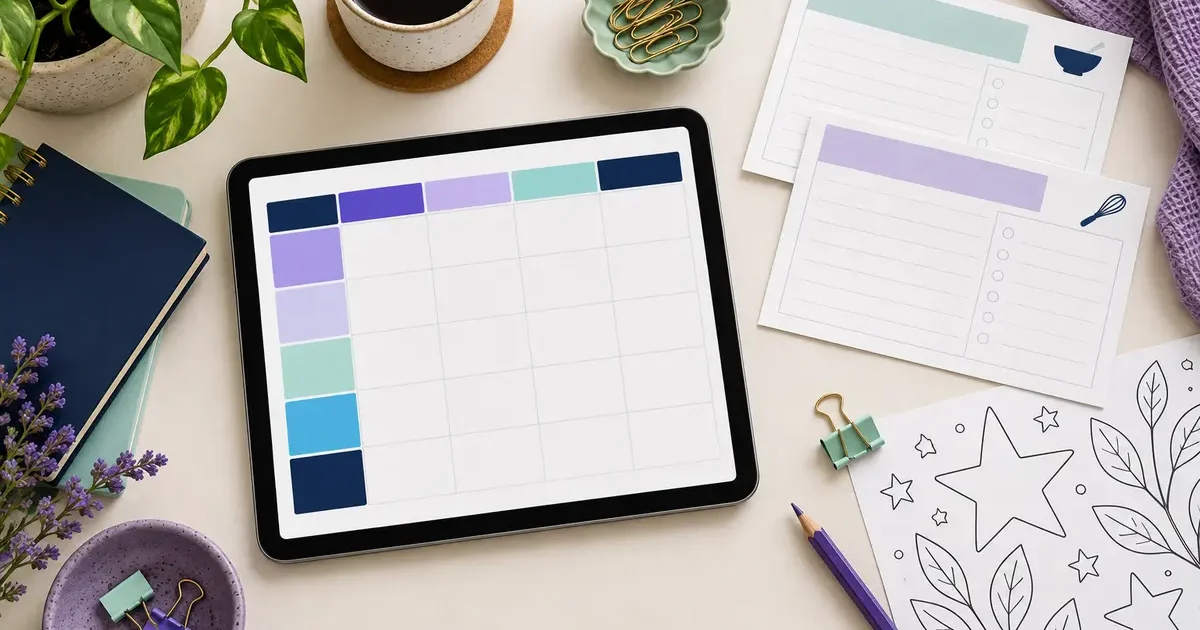
Digital planner templates are ready-made layouts you can adapt for tasks, routines, goals, or projects. Canva-based planner pages suit people who want to design and export a page-based planner. Notion templates suit people who prefer an editable workspace for managing information and recurring activities. Neither format is automatically better. The right choice depends on how you plan to use it, which app you want to work in, and whether you need a finished file or an ongoing dashboard.
On this page
What is the difference between Canva and Notion planners?
Canva-based digital planner templates usually start as collections of editable visual pages. You choose page layouts, personalize typography and colors, arrange sections, and export the result in a suitable file format. It is useful when presentation, consistent page design, and printable or shareable layouts matter. A Canva file is not automatically a Notion workspace, and a collection of pages is not necessarily a linked digital notebook.
Notion digital planner templates are built around pages, blocks, and sometimes databases inside Notion. Instead of designing a fixed page to export, you maintain a workspace as your tasks and plans change. You might keep a daily overview, recurring habits, notes, and long-term goals in connected sections. A Notion template is not a printable PDF just because its download instructions arrive as a PDF.
| Question | Canva planner pages | Notion planner templates |
|---|---|---|
| Where do you edit? | Canva design editor | Notion workspace |
| Typical outcome | Customized pages or an exported file | A workspace you keep updating |
| Best starting point | Visual layout and page design | Tasks, routines, notes, and information |
| Need to check | Page dimensions, dates, export and element access | Template setup, permissions and embedded services |
| Resale permission | Depends on the product’s specific license | Depends on the product’s specific license |
These digital planner templates represent typical workflows, not a promise that every template includes every feature. Always read the individual listing before buying.
When editable Canva planner pages make sense
Choose Canva digital planner templates when you want control over the final appearance. For example, you might organize a fitness journal around activity logs, meal-planning spaces, and weekly reflections. For business planning, you might prefer goals, monthly priorities, and project checklists. Select only the pages that serve your purpose rather than combining every design into one oversized file.
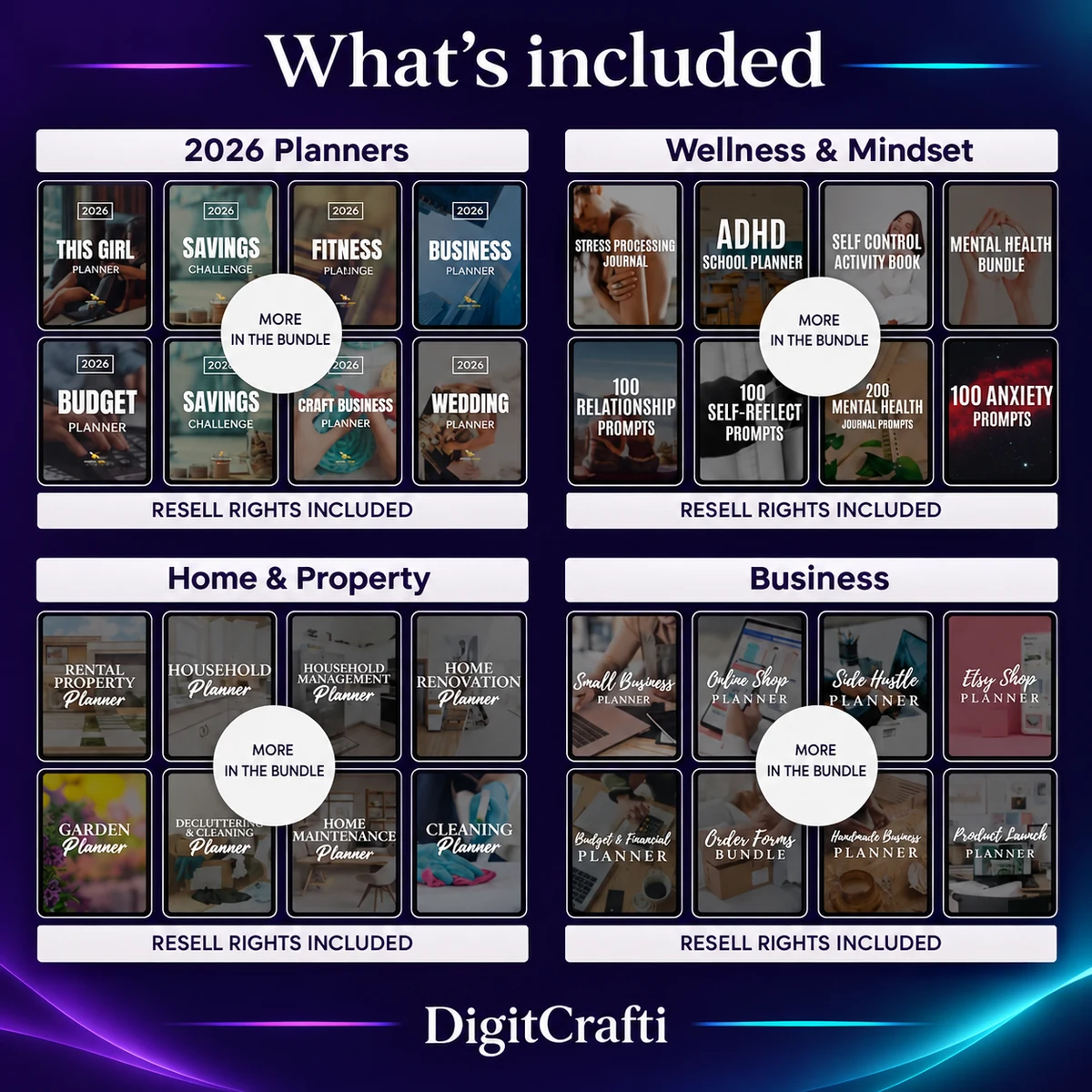
DigitCrafti’s Digital Planner Pages Bundle contains 7,500+ editable Canva pages covering themes such as business, fitness, wellness, finance, academics, and productivity. That number describes pages and trackers, not 7,500 distinct planner products. The listing also identifies separate bonus resources and specific licensing restrictions, which are important if you intend to customize planners for resale.
A practical Canva customization workflow
- Decide on a use case. A student schedule, wellness journal, and business tracker need different sections. Write down what the person using it must be able to record.
- Review the supplied pages. Look for page layouts that fit that purpose. Check headings, writing spaces, trackers, and any dated pages before deciding what to include.
- Open the editable template. Follow the access instructions supplied with your product. In Canva, work from your own editable design rather than changing a preview image.
- Make a consistent design. Align typography, spacing, and color choices across the pages. Short headings and readable contrast are usually more useful than decorative detail.
- Test the output. Export a small sample in the format you intend to use. Check that text, margins, image quality, and page order remain correct.
If a design uses paid assets or features, the required access may depend on your Canva account. The current product listing does not confirm that every included element can be edited with Canva Free, so verify access before planning your final workflow. Canva explains the standard template customization process in its official template guide.
When a Notion planner is the better format
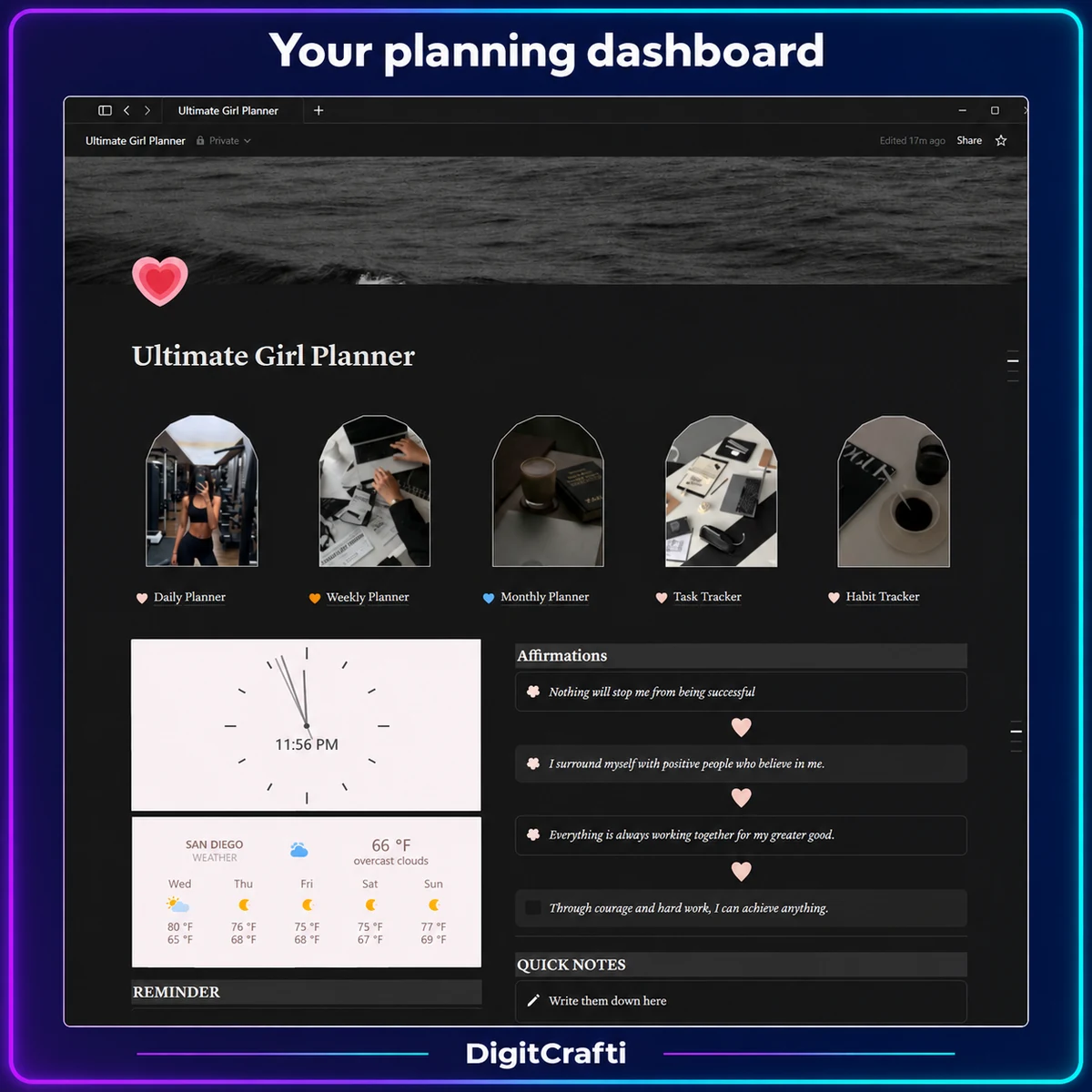
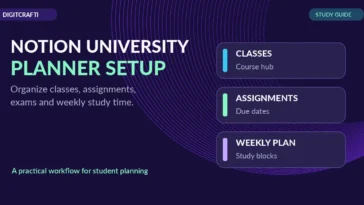
Notion digital planner templates are useful when the workspace itself is where you do the work. Rather than producing a fixed set of pages, you return to the dashboard to check tasks, update habit records, add notes, and review priorities. This can suit study schedules, personal routines, creative projects, and small-business task management.
For example, a dashboard might place a daily priorities section beside a habit tracker, with separate pages for weekly planning and notes. That layout reduces the need to switch between unrelated documents, but it still requires a simple system you will actually maintain. Start with the sections you need today; add extra databases or widgets only if they solve a real problem.
How to start with a Notion template
- Open a template through its legitimate access or duplication link and add a copy to your own Notion workspace.
- Read the structure before changing anything. Find the daily view, weekly plan, tasks, notes, and any databases or embedded widgets.
- Replace example text with your own goals and categories. Keep labels short and use clear navigation.
- Use the planner for a few days. Remove sections you ignore and adjust any recurring habits or priorities that do not fit.
Notion’s official template instructions explain how to add and adapt templates. Some external widgets may rely on separate services. The presence of a widget in a preview does not guarantee it will work without additional setup.
How to choose digital planner templates before buying
When choosing digital planner templates, start with the app, then the workflow, then the appearance. A beautiful set of printable pages can disappoint someone who actually wants a live task database. Likewise, a sophisticated Notion dashboard may be an unnecessary setup for someone who wants a simple weekly sheet.
- Choose your editing environment. Confirm whether the product works in Canva, Notion, PDF software, or another application.
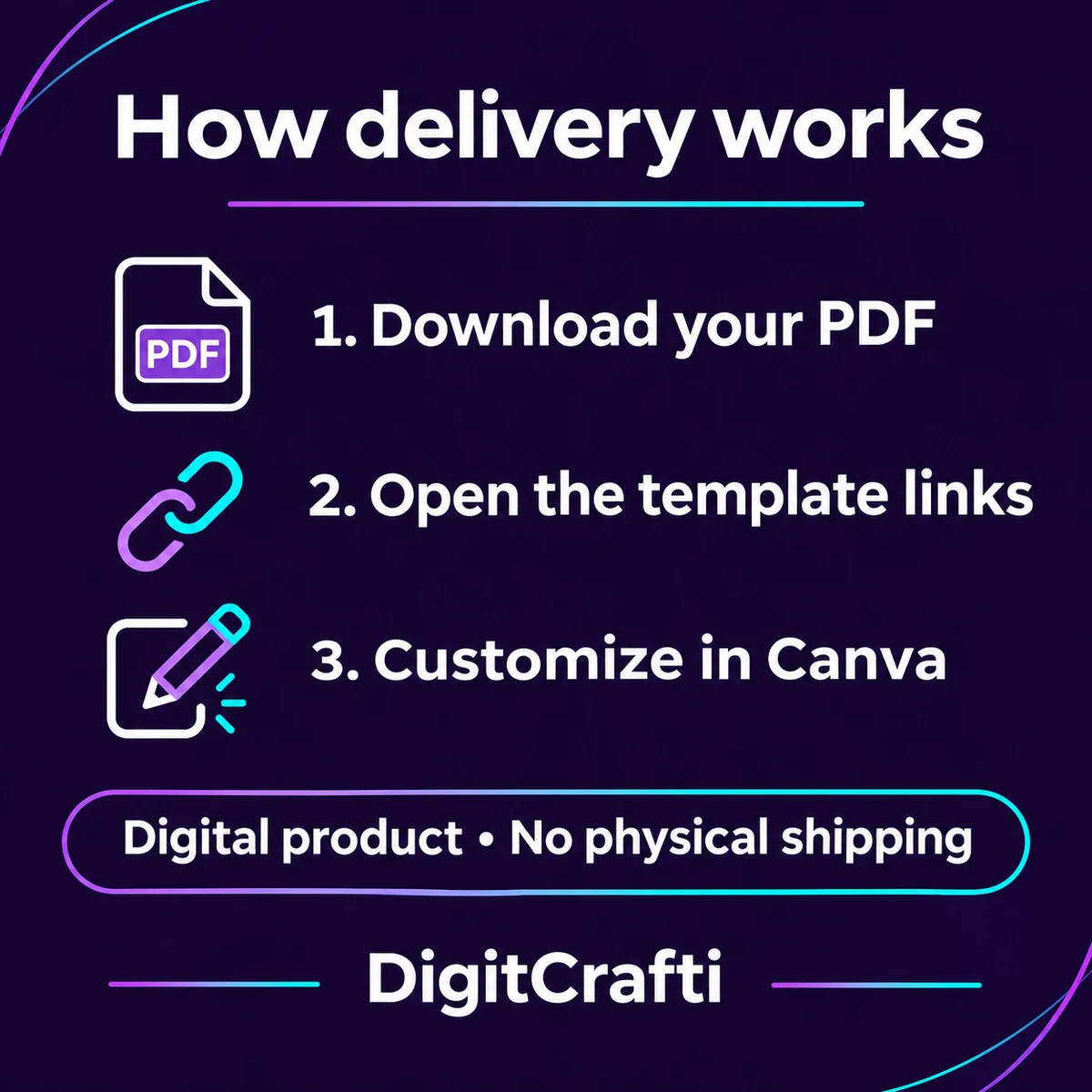
- Check the delivery format. Some digital purchases provide a PDF containing access links instead of a direct, editable planner file.
- Read the included list. Check whether the count refers to pages, complete planners, templates, or separate bonus items.
- Look for dates. An older dated calendar can require editing before use in a new year.
- Review access requirements. Do not assume all designs, paid elements, or third-party widgets are available on a free account.
- Confirm permitted use. Personal use, client use, modification, and resale are different permissions.
If you prefer a small resource for organizing meals rather than a broad design bundle, DigitCrafti also offers a Free Recipe Book Planner. It is a different planning format, so compare its file details with what you need rather than assuming it works like Canva or Notion.
Can you customize and resell planner templates?
Digital planner templates can be resold only when the specific product license allows it. Being able to open a design in an editor does not automatically give you permission to sell it, distribute its access link, or transfer third-party assets. PLR and MRR labels also need to be read together with the actual included agreement and any exclusions.
For the DigitCrafti planner pages collection described above, the planner pages include stated PLR/MRR permissions. However, its 5,000+ digital sticker bonus and two bonus eBooks are explicitly not resellable. Those bonuses should not be packaged into an offer for your customers. Before distributing a customized planner, also check the rules of your selling platform and the license terms of any new visual elements you add.
Review DigitCrafti’s digital product licensing and usage guide alongside the product-specific agreement. If you are planning a different type of digital publication, the article on how to make an ebook to sell covers outlining, editing, checking rights, and testing digital delivery.
Common mistakes to avoid with planner templates
One mistake with digital planner templates is treating a page collection as a ready-built, hyperlinked planner. Another is buying for a specific app without checking compatibility first. A third is using a long list of decorative sections that make everyday planning harder. Keep a small, practical structure, try it yourself, and revise it before sharing with anyone else.
For creators preparing a finished planner, presentation quality matters too. Preview several actual pages, proofread headings and dates, and test the download flow as a customer would. Avoid claiming a format, feature, or license permission that the finished product does not contain.
Digital planner templates FAQ
Are Canva and Notion planner templates interchangeable?
No. They are designed for different editing environments. Canva planner pages are visual designs that can be customized and exported, while Notion templates are workspace structures edited in Notion. Check a product’s compatible app before purchase.
Do I need Canva Pro to edit a planner bundle?
That depends on the specific designs and elements involved. Do not assume an entire third-party bundle works with a free account unless the listing confirms it. Review any account requirements and test access to the templates.
Can I print a Notion planner or use Canva pages directly inside Notion?
Exporting or importing information may be possible depending on the files and tools involved, but that does not make the two template formats equivalent. Choose a product specifically designed for the experience you want.
Does buying an editable template include resale rights?
Not automatically. Editable access and resale permission are separate matters. Use the product’s actual license to determine whether you may personalize, distribute, or resell it.
Final takeaway: For digital planner templates, use Canva when you want to shape planner pages and their final appearance. Use Notion when you want a workspace that stays active as your tasks and routines change. Choose the format first, inspect the product details second, and customize only what you will use.


 No products in the cart.
Comment (1)