

Video editing resources include stock footage, sound effects, transitions, color presets, animated titles, overlays and reusable project templates. Start with assets that solve a problem in your next video instead of downloading every available effect. A clear clip, balanced audio and readable text usually matter more than a crowded timeline. This guide explains seven useful asset categories, how to select compatible formats, and what to check before using or reselling a bundle.
Whether you edit travel clips, tutorials or product videos, a small library you have tested can be easier to manage than thousands of unfamiliar files. The examples below come from real categories in DigitCrafti’s editing catalog; availability, compatibility and permissions still depend on each resource.
On this page
What are video editing resources?
Video editing resources are supporting materials used with your original footage in a video editor. Some are media files placed directly on a timeline, such as sound effects and stock clips. Others are project files, templates and presets that require a particular application. Downloading an editing asset does not mean the software to open it is included.
An editor’s toolkit can be grouped into source media (footage and sound), creative treatments (color and effects), and reusable structures (titles and project templates). Thinking in those categories helps you avoid buying a collection that cannot be used in your editing workflow.
Seven essential editing asset types for creators
1. Stock footage for cutaways and backgrounds
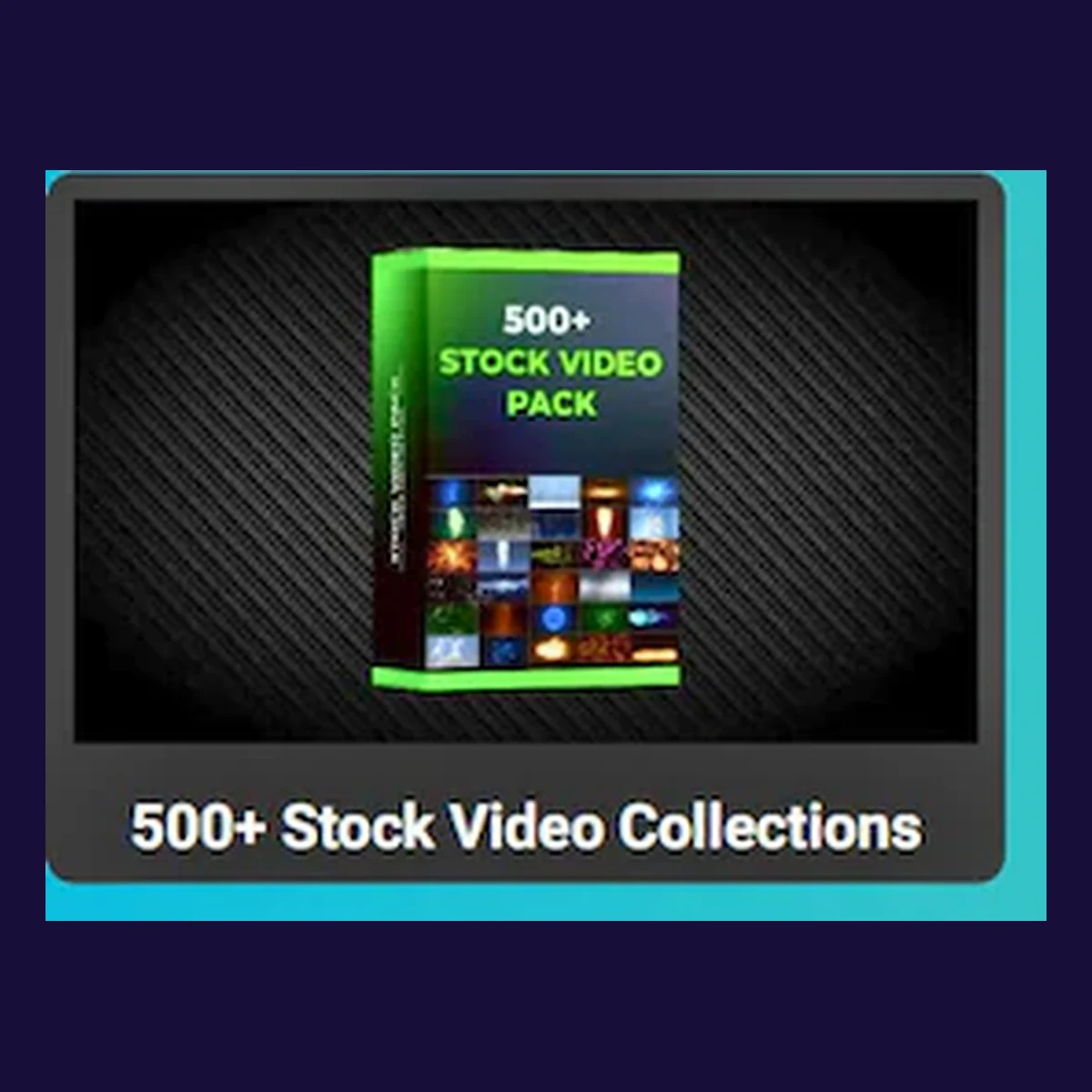
Stock footage can fill a gap when you need a general establishing view, background, or supporting cutaway. Match its resolution, frame rate, framing and mood to your project. Avoid implying that a stock clip proves a real customer result or shows a specific event unless you know it does.
The DigitCrafti Video Editing Assets Bundle includes a stock-footage collection among other asset types. Inspect the clips and their usage rights before adding them to client work.
2. Sound effects and audio layers
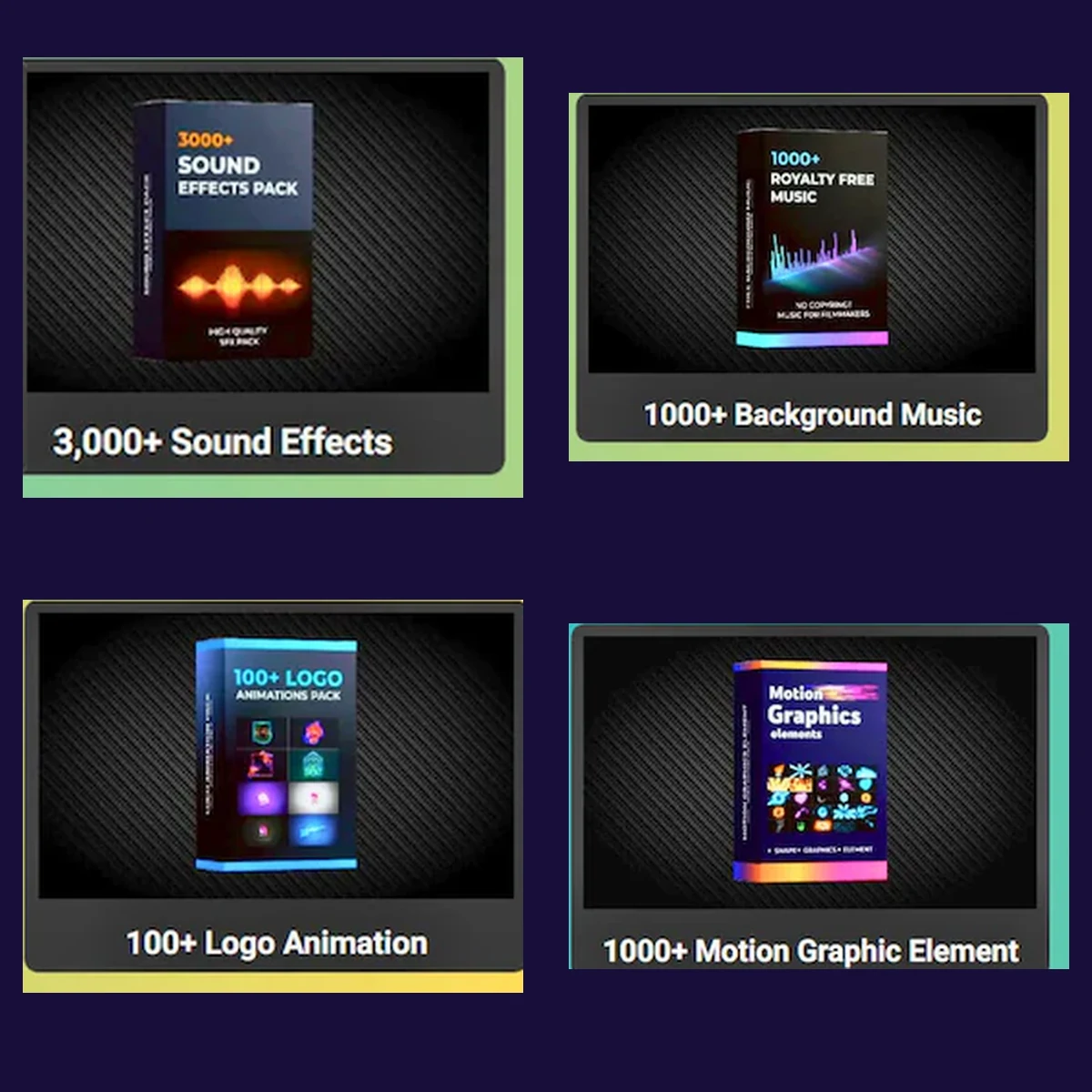
Audio can guide attention as well as decorate a video. A short click might accompany a screen animation; a gentle whoosh might support a change of scene. Balance voice and music first, then add only effects that help the viewer. Listen on headphones and a phone to catch volume changes or distracting peaks.
Check sound and music rights separately. Editing permissions or a general resale statement do not automatically override third-party music rights or a social platform’s audio rules.
3. Transitions and edit effects
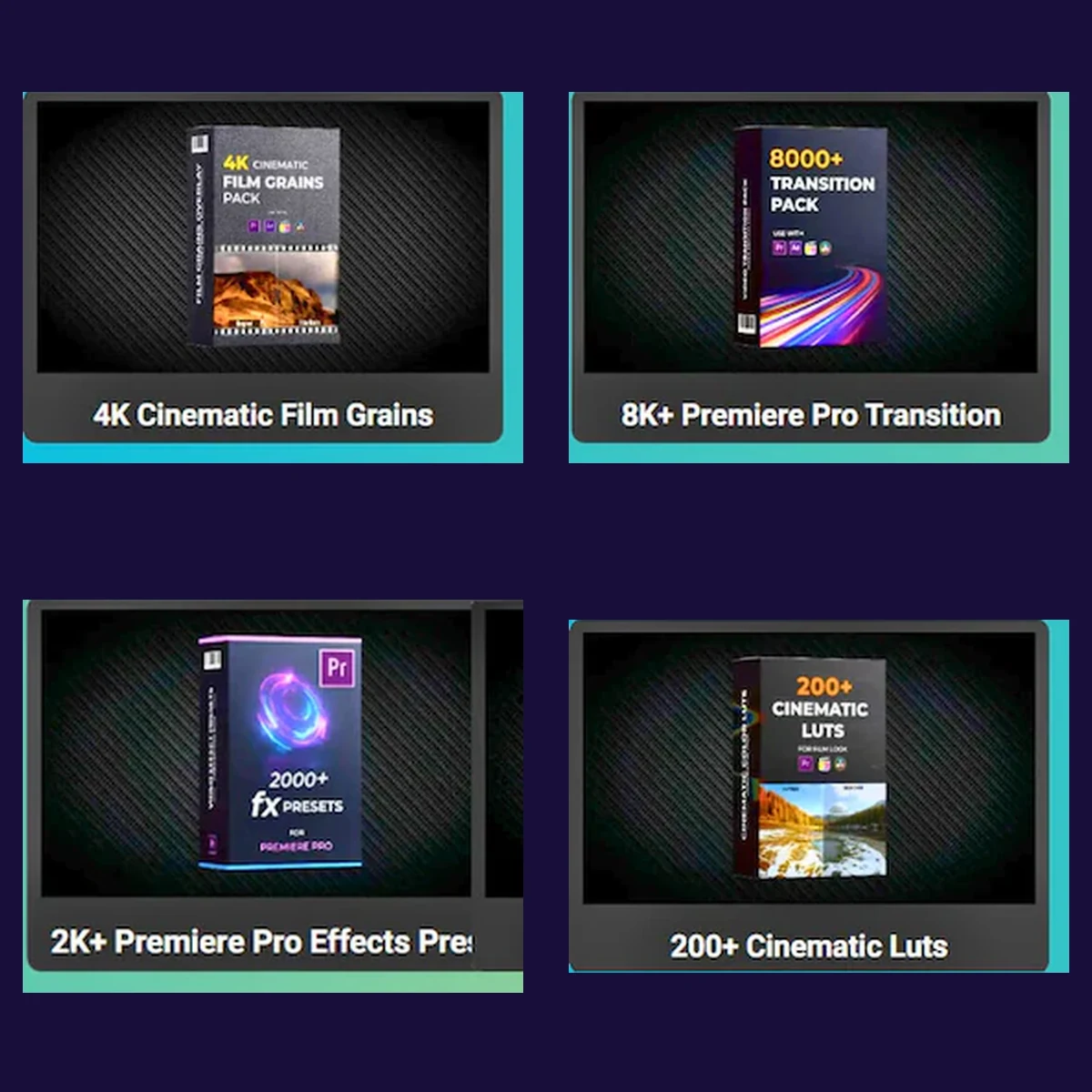
Transitions should support a change in scene, topic, or pace. A clean cut is often enough; a stylized transition has a clearer purpose when it reflects movement or a deliberate change. Avoid stacking unrelated effects simply because a pack contains many of them. Some presets also depend on plug-ins or editor versions.
4. LUTs and color presets
Look-up tables, or LUTs, can be a starting point for a consistent visual style. They do not automatically correct poor exposure or white balance. Adjust the footage first, then test an appropriate LUT on more than one shot because cameras and lighting conditions differ. Adobe’s official LUT guide explains how to apply these files in Premiere.
5. Animated titles and lower thirds
Titles and lower thirds introduce people, label steps, or make important points legible. Keep type large enough for mobile viewing and leave space around the subject. A motion graphics template may allow editing text, colors or media placeholders, but customization options depend on the file. Adobe documents its Motion Graphics templates and the current Graphics Templates panel.
6. Overlays, light effects and textures
Film grain, light leaks, weather particles and camera-style overlays can give footage a distinct atmosphere. Preview them over your actual video. Depending on the asset, you might need transparency or a blending mode, and the result can look different from a promotional thumbnail. Keep the subject readable.
7. Reusable templates and presets
A project template might contain a prepared timeline, animated scene or graphic treatment. A preset applies saved settings or effects. Unlike a normal video clip, these files can require specific programs, fonts, versions or extra plug-ins. Make a copy, test one file and note dependencies before committing to an entire project.
Check file formats and software compatibility
Before choosing video editing resources, identify which editor you own and which version you are running. The DigitCrafti bundle lists .prproj project files for Premiere Pro, .mogrt Motion Graphics templates, and .aep After Effects projects, alongside Final Cut Pro resources and other media. These formats are not interchangeable. The listing does not establish compatibility with every application version.
- Find your editor and version. Match each file to the software that can open it.
- Check media versus projects. Stock clips are not equivalent to editable project templates.
- Test one file first. Look for missing media, unavailable fonts, or unsupported effects.
- Keep original downloads. Store a working copy so you can restore the unedited resource.
- Read the license. Distinguish personal use, client work, modification and redistribution.
Software installers, subscriptions and editing-software licenses are not included in the DigitCrafti editing asset bundle. You need suitable software of your own. Treat any specific plug-in or version requirement as something to verify before using that particular resource.
Build a repeatable video editing workflow
Instead of searching through folders while editing, work from a simple process. For a short travel reel or a product demonstration, choose the message and rough cut before adding effects. That makes it easier to decide which assets actually help.
- Define the message. Select truthful clips that support the subject and audience.
- Build the rough cut. Put the opening, middle and ending in a clear order.
- Balance sound. Make speech intelligible and introduce only necessary effects.
- Add motion selectively. Use a transition or overlay when it clarifies the sequence.
- Adjust color and titles. Check contrast, consistency and mobile readability.
- Export and inspect. Watch the complete video, including its first and last seconds.
For a themed footage option, the Travel Instagram Reels Bundle is separate from an editing-assets toolkit. It focuses on travel clips rather than general effects and presets. Review individual clips before describing a destination or travel experience in your post.
Organize video editing resources you actually use
Create practical folders for footage, audio, transitions, color, overlays, titles and project templates. Name favorites by what they do, not by the original ZIP name. Keep a short note describing the editor required for each project file and record any known license restrictions. A tested library is easier to revisit than a large unreviewed download.
If you use an asset for a client project, keep the source information and license with your records. Using an effect in a rendered video is different from delivering the original effect files for reuse or resale. Check the written permission for the second situation.
How to evaluate a downloadable editing bundle
A large resource count does not automatically make a bundle the best fit. Ask whether you can open its file formats, whether there are real previews, which categories are included and how delivery works. Look for practical coverage of the tasks you do most often, rather than choosing solely by the advertised number of files.
DigitCrafti lists more than 100,000 items in its Video Editing Assets Bundle, covering stock footage, sound effects, LUTs, transitions, motion graphics and more. Delivery consists of three PDFs: an asset access guide, a bonus collection guide and a Master Resell Rights license. The resource files are reached through the guides’ links; they are not embedded in the PDFs.
The included MRR agreement describes permissions to customize and resell under specified conditions. It is non-exclusive and revocable, with further obligations. Review the full agreement before distributing files, and check DigitCrafti’s digital product licensing and usage guide. No editing software or guaranteed sales outcome comes with the bundle.
Combine editing assets with consistent visual design
A video still needs consistent colors, clear cover images and readable text. Choose a simple typography system and a few complementary layouts for social covers. This is a different skill from installing motion graphics presets. The Canva Crash Course covers editable design layouts and beginner tools, not editing-software licenses.
For a related design workflow, read our article about creating social media templates. The design and editing resources support different parts of content production, so check each product for its actual features before buying.
Final takeaway: Start with a clear message and the assets your project truly needs. Check the software and license, preview one sample, then grow your library gradually. Effective video editing comes from thoughtful choices, not just the size of the download.
Video editing resources FAQ
Are editing assets the same thing as editing software?
No. Assets include clips, sounds, effects and templates that are used in an editor. The software or subscription needed to use them is a separate purchase.
Will every file work in Premiere, After Effects and Final Cut Pro?
No. Projects, templates, presets and plug-ins can depend on different applications and versions. Check file formats and test the resources relevant to your setup.
Do beginners need a huge editing bundle?
Not necessarily. A smaller, tested group of footage, audio, titles and presets can be enough to start. Learn the basic editing workflow before adding more effects.
Can I resell video editing files?
Only when the specific agreement permits resale and you meet its terms. The DigitCrafti bundle contains an MRR license, but that does not erase separate third-party rights or software requirements.

 No products in the cart.
Comment (1)